DITO APN Settings Guide: How to Configure APN for Android and iPhone
If your DITO mobile data isn’t working properly or you’ve inserted your SIM into a new device, configuring the correct DITO APN settings can help restore your internet connection. While most smartphones automatically download the correct settings, some devices require manual configuration.
This guide explains the latest DITO APN settings, how to configure them on Android and iPhone, troubleshooting tips, and common mistakes to avoid.
Related – DITO Data Promos & activate your DITO eSIM
Quick Answer: What Are the DITO APN Settings?
Use the following APN configuration for a DITO SIM:
| Setting | Value |
|---|---|
| Name | DITO |
| APN | internet.dito.ph |
| MCC | 515 |
| MNC | 66 |
| APN Type | default,supl,xcap (or default) |
| APN Protocol | IPv4/IPv6 |
| APN Roaming Protocol | IPv4/IPv6 |
| Proxy | Leave blank |
| Port | Leave blank |
| Username | Leave blank |
| Password | Leave blank |
| Server | Leave blank |
After saving the profile, select the new APN and restart your phone if necessary.
What Is an APN?
An Access Point Name (APN) is a network configuration that tells your phone how to connect to your mobile carrier’s internet service.
Without the correct APN, you may experience:
- No mobile data connection
- Slow internet speeds
- MMS or network service issues
- Difficulty connecting after changing devices
Most users never need to adjust APN settings, but manual setup can solve connectivity problems on some unlocked or imported phones.
When Should You Configure DITO APN Settings?
You may need to enter the APN manually if:
- Mobile data isn’t working after inserting your DITO SIM.
- You switched to a new smartphone.
- Your phone didn’t automatically download the carrier settings.
- You reset your network settings.
- You’re using an imported or unlocked device.
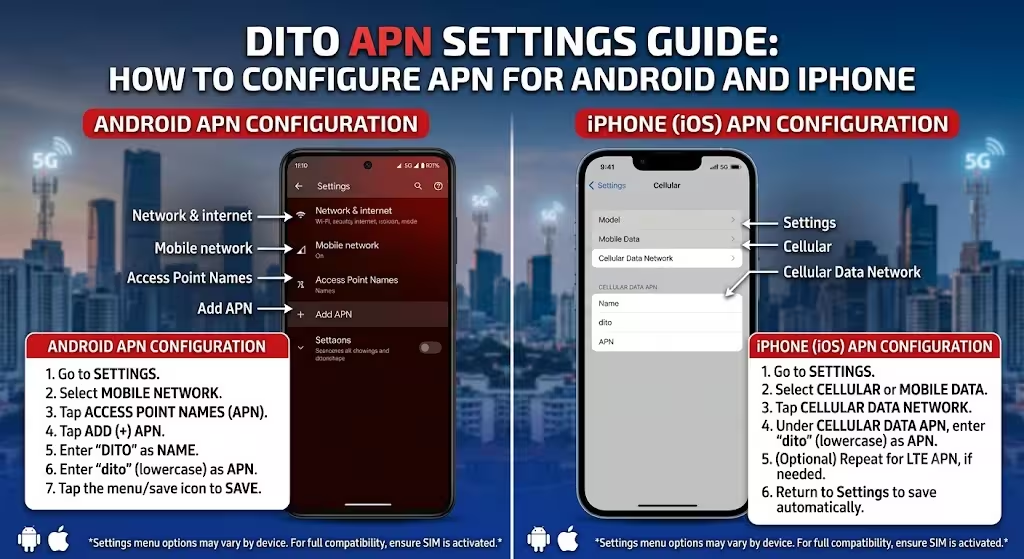
How to Configure DITO APN on Android
Although menu names vary slightly by manufacturer, the steps are generally similar.
- Open Settings.
- Tap Network & Internet, Connections, or Mobile Network.
- Select Mobile Network.
- Tap Access Point Names (APN).
- Tap Add or the + icon.
- Enter the DITO APN settings shown above.
- Tap Save.
- Select the newly created APN.
- Turn Mobile Data on.
- Restart your device if the connection doesn’t start immediately.
How to Configure DITO APN on iPhone
On iPhone:
- Open Settings.
- Tap Cellular or Mobile Data.
- Select Cellular Data Network.
- Under the Cellular Data section, enter:
- APN:
internet.dito.ph - Username: Leave blank
- Password: Leave blank
- APN:
- Return to the previous screen.
- Restart your iPhone.
If the Cellular Data Network menu isn’t available, your carrier settings may be managed automatically.
Complete Registration guide on : Tnt Sim Registration
Understanding Each APN Setting
Knowing what each field does can help if you’re troubleshooting.
| Field | Purpose |
|---|---|
| Name | A label for the APN profile |
| APN | Connects your phone to DITO’s mobile internet |
| MCC | Identifies the country (Philippines) |
| MNC | Identifies DITO as the network operator |
| APN Type | Defines supported network services |
| APN Protocol | Determines whether IPv4, IPv6, or both are used |
The remaining fields can usually remain empty unless instructed otherwise by DITO.
Troubleshooting DITO Mobile Data Problems
If your internet still isn’t working after configuring the APN, try these solutions.
Restart Your Phone
A simple restart refreshes the mobile network and applies the new APN settings.
Toggle Airplane Mode
Turn Airplane Mode on for about 10 seconds, then turn it off to force the phone to reconnect to the network.
Verify Mobile Data Is Enabled
Check that Mobile Data is switched on and that your DITO SIM is selected as the active data line if you’re using dual SIM.
Check Network Coverage
Weak or unavailable DITO coverage can prevent mobile data from working even when your APN settings are correct.
Reset Network Settings
If you’ve tried multiple APN profiles, resetting your phone’s network settings can remove incorrect configurations before creating a fresh APN.
Tips for Better Mobile Data Performance
To improve your mobile internet experience:
- Keep your phone’s software updated.
- Use the latest carrier settings if prompted.
- Avoid creating multiple DITO APN profiles.
- Use the default APN unless instructed otherwise by customer support.
- Restart your phone after changing network settings.
Common Mistakes to Avoid
Incorrect APN configuration is one of the most common causes of mobile data issues.
Avoid these mistakes:
- Entering the wrong APN address.
- Filling in unnecessary username or password fields.
- Using incorrect MCC or MNC values.
- Forgetting to save the APN profile.
- Leaving another APN selected after creating the new one.
Double-check every field before saving.
Frequently Asked Questions
Final Thoughts
Most DITO users won’t need to manually configure their APN, but knowing the correct settings can quickly resolve mobile data issues when automatic configuration doesn’t work. By entering the correct APN values, selecting the new profile, and restarting your device, you can often restore your internet connection in just a few minutes.
If problems continue after following these steps, confirm your device is compatible with the DITO network and consult the official DITO support resources for the latest device-specific guidance.